Use Import transactions to bring older bank history into Talvo, add a credit card statement, or move transactions from another budgeting app. You choose the file and account, check a preview, then confirm which transactions to import.
Before you start
Download your statement or export from your bank or previous app. Talvo accepts CSV, Excel (.xlsx) and PDF files up to 10 MB. Keep the original nearby so you can compare it with the preview.
Open Transactions in the Talvo web app and choose Import transactions. Pick the type that matches your file:
- Bank account history: transactions from a current or savings account, including history from before you connected your bank.
- Credit card statement: individual card purchases, refunds and fees. This option also helps link the monthly card payment in your bank account.
- Other transactions: a cash log or an export from another budgeting app.
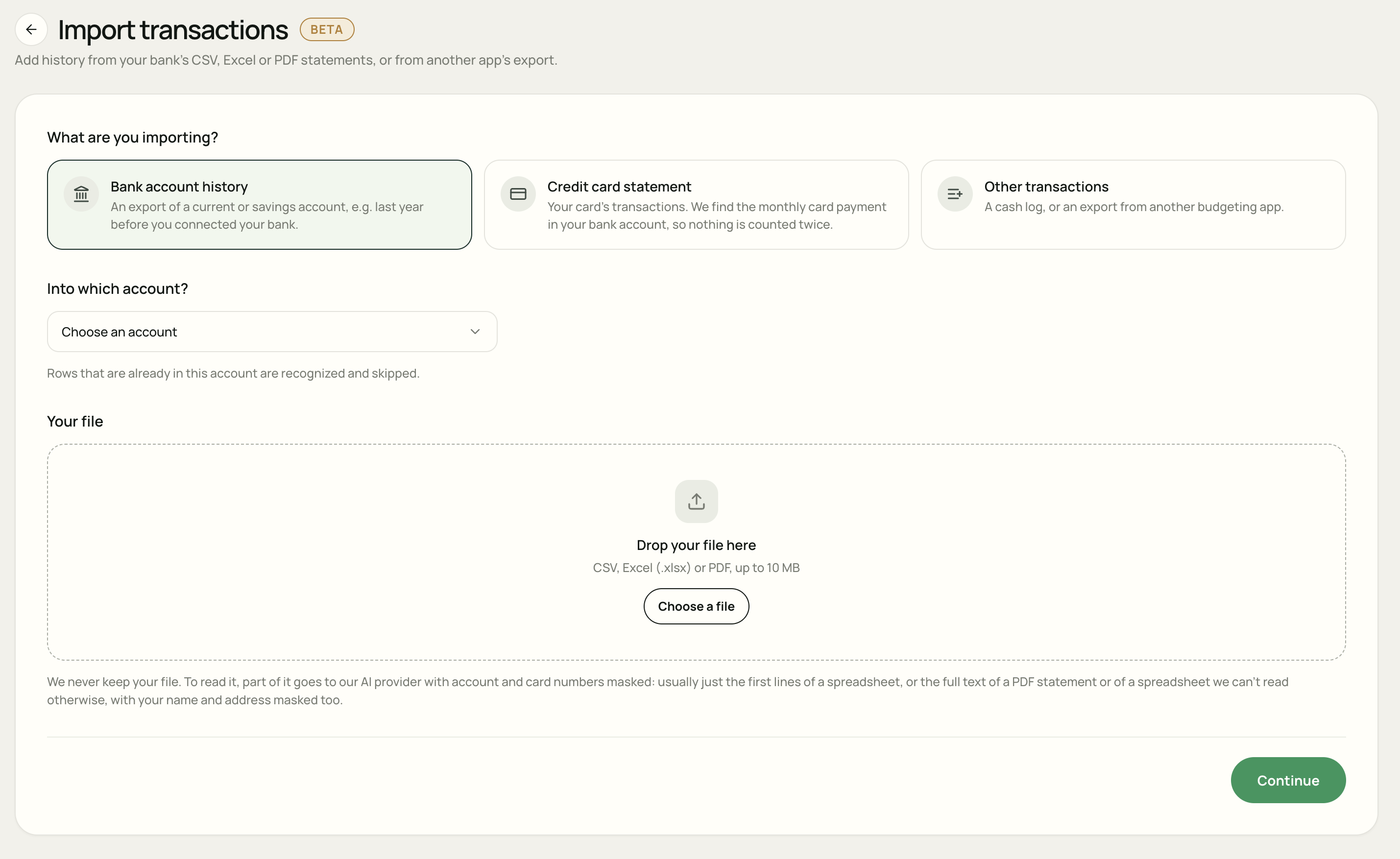
Choose a file and account
Choose the destination
For bank history, select the account the transactions belong to, or choose A new account… and enter its name and currency. For a card statement, choose a manual card account or A new card account….
With Other transactions, you can also choose No account. Those transactions count towards your budget without being linked to an account.
Add your file
Drag the file into the upload area or choose Choose a file. Check that you selected the correct statement and account.
Continue to the preview
Choose Continue. Talvo reads the file and prepares the transactions for review. This can take up to a minute when it needs to read every row.
Continue prepares a preview. The transactions are added only after you confirm the import on the review screen.
Review the transactions
Start with the account name, date range, transaction count and money-in and money-out totals. Compare a few individual rows with your statement, including an incoming payment and an outgoing purchase.
Check columns, dates and signs
For spreadsheets, use Fix columns if the date, amount, payee or other fields point at the wrong columns. Check whether your file uses one signed amount column or separate money-out and money-in columns.
- Wrong date order? Use Swap day/month or choose the correct date format in the column settings.
- Purchases shown as money coming in? Use Flip signs. Money out should have a negative amount.
- Wrong worksheet? Use the Sheet selector for an Excel workbook. If you have returned to an older preview, upload the file again to read another sheet.
Use the pencil beside a transaction to correct its date, payee, description or amount. Check any PDF totals warning against the statement. Rows Talvo could not verify against the file are left unticked: review and correct them before selecting them.
Understand which rows are selected
| Label | What to do |
|---|---|
| New | Normally selected for import. Check the details and untick anything you do not want to add. |
| Already in Talvo | Skipped by default. Select a row only if you have checked that it should be imported again. |
| Possible duplicate | Skipped by default. Compare it with your existing transactions before selecting it. |
| Via bank sync | Skipped because your bank sync is expected to bring it in, avoiding a second copy. |
| Unreadable | Fix the columns or edit the row to provide a readable date and amount. |
Check the account balance setting
When Account balance appears for an existing account, choose how the imported history should affect it:
- Keep current balance: older history does not change today’s balance. Talvo moves the opening balance back in time to make room for it.
- Let imports change it: the imported transactions add to the account’s balance.
Transactions dated after you added the account change its balance either way. The preview shows the amount affected, so check this before confirming.
Import a credit card statement
Choose Credit card statement when your file lists individual card transactions. The purchases belong in the card account; the monthly payment from your bank account should count as a transfer to that card.
For example, if a statement contains €600 of purchases and your bank account shows a €600 card payment, the spending is €600. Linking the bank payment as a transfer prevents it from being counted as another €600 of spending.
- Check the purchases, refunds, fees and statement total against your card statement.
- Review Monthly card payments. For a payment marked Check, verify the suggested bank transaction and use Change or Choose the payment if needed.
- If a payment is Not found yet, Talvo can link it automatically when it appears in your bank accounts. You can also review Card payments later from your import history.
Payment-to-card and summary lines in the file are not imported as purchases. If you choose No bank payment for this one, the bank payment is not linked as a transfer and stays in spending as it is.
Finish or undo an import
Once the preview matches your statement, choose Import [count] transactions. Talvo adds the selected rows and starts sorting them into categories; categorisation can take a minute. Choose View transactions to review the result.
To stop before importing, choose Discard. To return later, open the waiting preview under Your imports. Previews are kept for 24 hours; after that, upload the file again.
To reverse a completed import, open Your imports, find the file and choose Undo. Check the confirmation, then choose Undo import. This removes that import’s transactions, including any edits you made to them afterwards.
Next, review your categories or learn more about transfers and manual accounts.
How your file is read
Talvo does not keep your uploaded file. To read it, Talvo sends part of its content to its AI provider with account and card numbers masked. For a spreadsheet, this is usually just the first lines. For a PDF, or a spreadsheet it cannot otherwise read, it sends the full text with your name and address masked too.
The preview remains available for 24 hours so you can review it. Confirmed transactions become part of your Talvo history. See the privacy policy for more about how Talvo handles data.
A few common questions
Can I import history from before I connected my bank?
Yes. Choose Bank account history and select the account it belongs to. Review the duplicate and bank-sync labels before confirming.
Can I upload the same file twice?
Talvo warns when a file was imported before and marks recognised rows as duplicates. These rows are skipped by default. Review the preview carefully before selecting any of them again.
Can I try an upload in the demo?
You can explore the import setup in the demo. Uploading your own file requires a Talvo account with Talvo Pro.