Recurring collects the payments that come back on a schedule: subscriptions, bills, insurance and loan payments, and regular income such as your salary. Each one is a series with a name, an amount, how often it repeats and when the next charge is expected.
How Talvo finds recurring payments
Talvo looks at your transactions for the same payee charging a similar amount at a regular interval. It recognises payments that repeat every week, every month or every year, as well as longer cycles such as every two weeks or every three months.
- Fixed amounts, such as a streaming subscription, are expected to charge the same amount each time.
- Amounts that vary, such as energy or phone bills, are matched within their usual range.
- Income, such as a salary, is kept separate from bills and subscriptions.
New transactions are checked each time your accounts sync, so a new subscription usually appears after it has charged a few times. Transfers between your own accounts are never treated as recurring payments.
Review what Talvo finds
When Talvo thinks a payment repeats, it asks you on the Home screen in the Heads up card. Each card needs one answer.
Looks like a subscription
Talvo has seen a repeating charge but is not sure yet. Choose Track it to add it to your recurring list, or Not recurring if it was a coincidence. For income, the card reads Looks like regular income.
New subscription spotted
Talvo was confident enough to start tracking it already. Choose Keep it to confirm, or Not recurring to remove it.
Review the rest later
Suggestions you have not answered yet also wait in the To review tab of your recurring list. Open one to check its past charges before you decide.
Choosing Not recurring stops tracking the payment, unlinks its charges and tells Talvo not to suggest it again.
See what is coming up
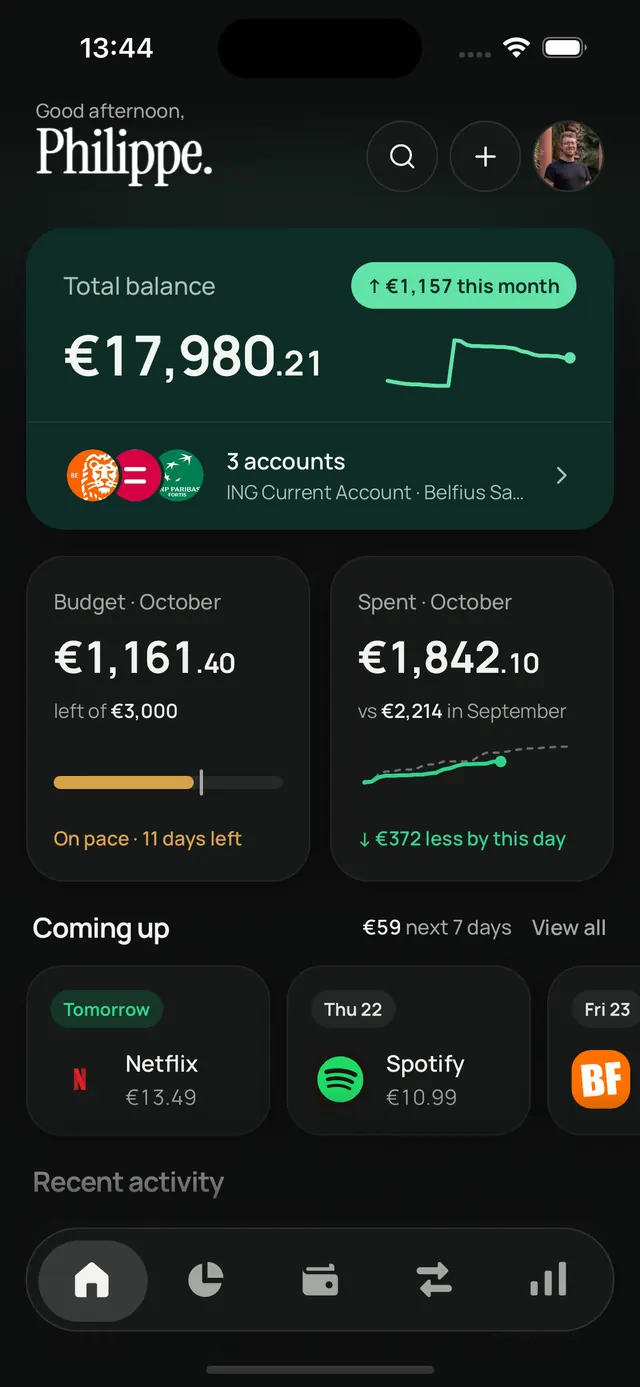
The Coming up row on Home shows the bills and subscriptions due in the next seven days, soonest first, with their total. A charge due today or tomorrow is labelled Today or Tomorrow.
Coming up only lists money about to leave your accounts. Income and charges that have already been paid stay out. When nothing is due this week, Talvo shows your monthly total for bills and subscriptions instead.
Select a payment to open its details, or choose View all to open your full recurring list.
Read your recurring list
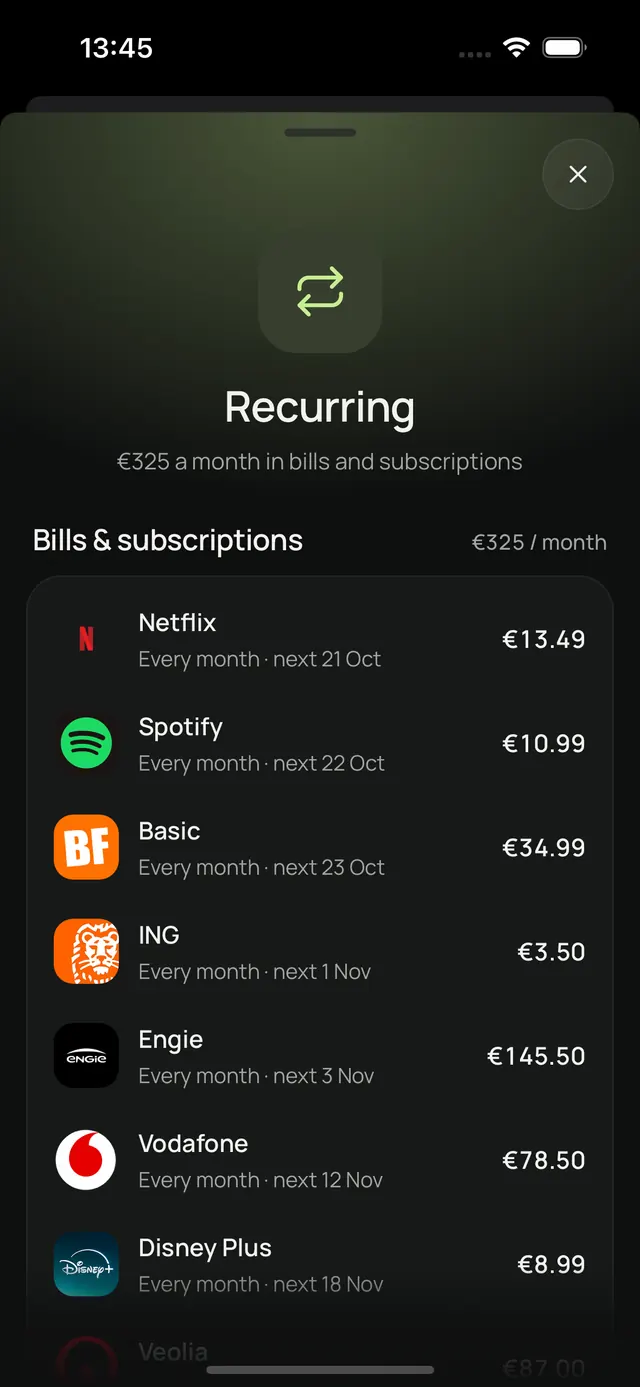
The top of the Recurring list shows what your bills and subscriptions cost per month. Below it, active series are grouped into Bills & subscriptions and Income, each with its own monthly total. Each row shows how often the payment repeats and when it is next expected.
- Active: the series Talvo is tracking.
- To review: payments Talvo thinks repeat, waiting for your answer.
- Ended: series you marked as cancelled or that stopped charging.
The tabs only appear when there is something to review or something that has ended. Small badges flag what needs attention: New, Late when an expected charge has not arrived, Price up or Price down, and Charged again.
Monthly amounts for every cycle
To make different schedules comparable, Talvo converts each series to a monthly figure. The Per month line in a series shows that figure next to the actual charge.
| Payment | Charge | Per month |
|---|---|---|
| Streaming, every month | €12 | €12 |
| Water, every three months | €90 | €30 |
| Car insurance, every year | €480 | €40 |
| Total | €82 |
Open a series to see its Next charge, Last charge, Per month amount, category, account and every linked charge. For amounts that vary, Talvo also shows the Usual range.
Mark a payment as recurring
If Talvo has not found a payment yet, you can add it yourself from any of its transactions.
Open the transaction
Select a charge from the payee in your transaction list, then choose Recurring under the amount.
Check the details
Talvo fills in the name, amount, how often it Repeats and the Next charge. Turn on Amount varies for bills where each charge differs a little. Choose an account, or leave Any account.
Link past charges
Under Past charges, Talvo shows the earlier transactions it will link to the series, so its history is complete from the start.
Track it
Choose Track it to save the series. It appears in your recurring list straight away.
When you pick a category, you can also turn on Always categorize [name] like this. Talvo then saves a rule so future charges from that payee get the same category.
If the transaction already belongs to a series, Recurring opens that series instead.
Price changes and cancellations
Talvo keeps watching your active series and uses the Heads up card when something changes.
- Price went up or Price went down: a charge differs from the usual amount. The card shows the previous price. Choose Got it to accept the new price, or It's cancelled if you have stopped the subscription.
- Charged after you cancelled: a series you marked as cancelled has charged again. Choose Still active to track it again, or Got it to keep it ended, for example while you ask the provider for a refund.
- Late: an expected charge has not arrived yet. This can mean a delay, a changed payment date or a subscription that has ended.
Edit, end or remove a series
Open a series and look under Manage. Choose Edit to change its name, amount, schedule, next charge, account or category.
| Option | When to use it | What happens |
|---|---|---|
| Mark as cancelled | You stopped the subscription or bill. | The series moves to Ended and keeps its history. Talvo tells you if it charges again. |
| Still active | An ended series has started again. | Talvo expects its charges again. |
| Not recurring | The payments were not really recurring. | Tracking stops, its charges are unlinked and Talvo will not suggest it again. |
| Delete | You no longer want the series. | The series and its schedule are removed. Its transactions stay. |
To take a single charge out of a series, open that transaction and choose Remove from [name] from its menu. The rest of the series stays as it is.
Recurring payments still count as normal spending in your budgets and Insights. To plan for yearly bills, read budgeting for annual expenses.
A few common questions
Can Talvo cancel a subscription for me?
No. Talvo has read-only access to your bank accounts. Cancel with the provider, then mark the series as cancelled in Talvo.
Why is my subscription not in the list yet?
Talvo needs to see a payment repeat before it can suggest it. You can add it straight away from one of its transactions with the Recurring action.
Does my salary count as a bill?
No. Regular income is listed separately under Income and is not part of your monthly bills and subscriptions total.
Does deleting a series delete my transactions?
No. Delete removes the series and its schedule. The transactions stay in your accounts and keep their categories.