Year plan puts your income and expense budgets for January through December in one editable grid. Use it to plan regular costs, allow for an expensive month and see how much of your planned income remains.
Open your year plan
Go to Budget
Open Budget in the Talvo web app, then choose Year plan.
Choose the year
Use the arrows beside the year in the top-right corner to move to the previous or next year.
Start with your existing budgets
The grid shows the monthly plans and month-specific amounts you have already set. You can adjust them here without opening each month separately.
If you see Nothing to plan yet, add income and expense categories, then return to the planner.
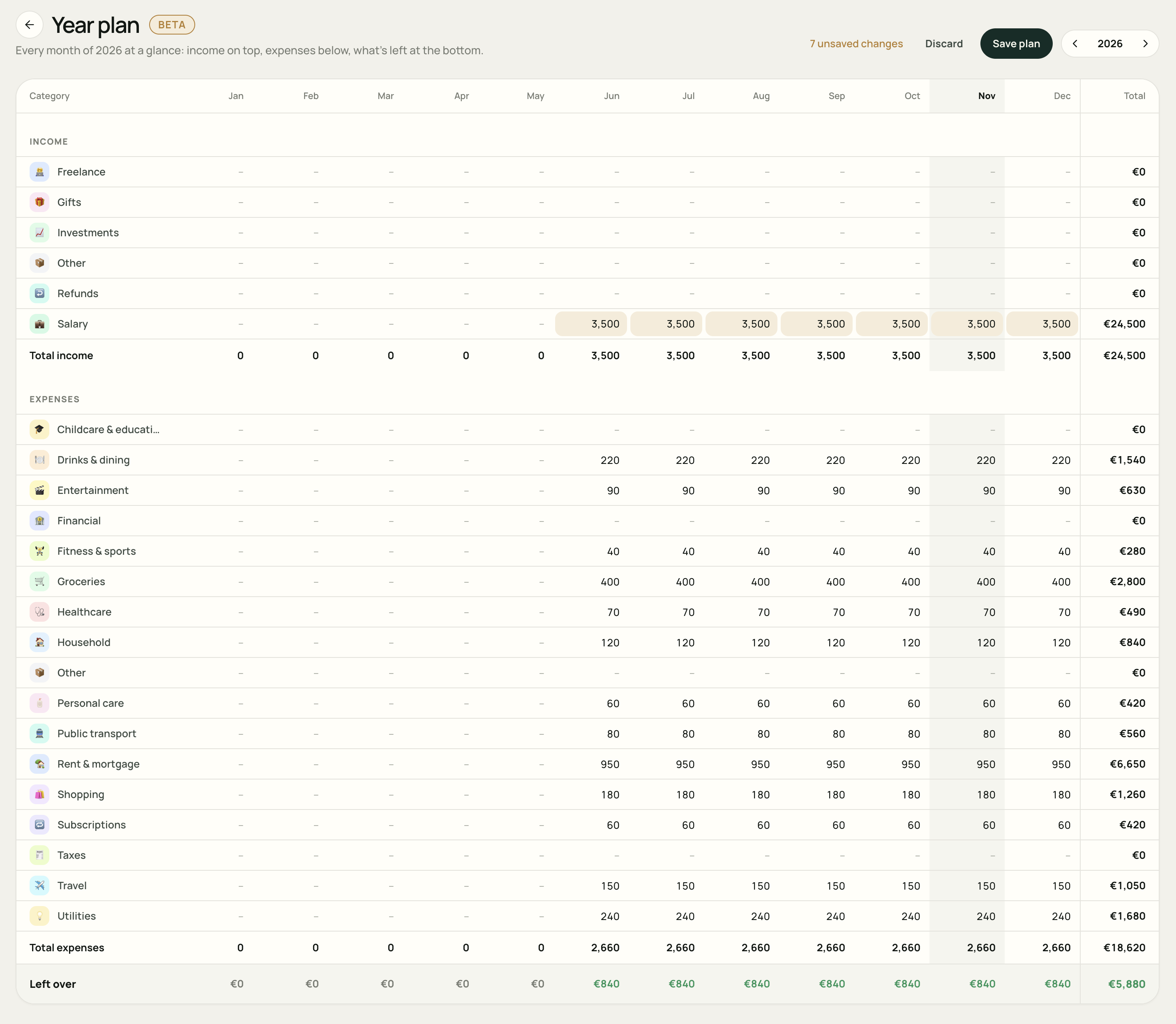
Read the grid
- Rows: your income and expense categories, organised into their sections and groups.
- Columns: January through December, with a Total column for the year on the right.
- Total income and Total expenses: the sums of your planned amounts for each month and the year.
- Left over: planned income minus planned expenses.
A dash represents a zero amount. The current month has a shaded column when you are viewing the current year. On a narrow screen, scroll the grid horizontally to reach the other months; the category names stay visible.
If a group has one shared budget, edit its group row. If you budget its categories individually, edit those category rows; the group header shows their combined amount.
Edit a month
Select a cell where a category row and month column meet, then type the amount. Use whole amounts of zero or more for both income and expenses. Talvo subtracts the expense section when calculating what is left over.
Press Enter or select another cell to apply the value to your draft. The totals update as you go and changed cells get a warm highlight. Clearing a cell sets its amount to zero.
Make room for a one-off cost
Suppose you normally plan €180 a month for Shopping but expect to spend €300 in December. Change only the December cell to 300. The other months keep their existing amounts.
A saved month-specific amount is marked with a small dot. Its tooltip tells you that it was set for that month only and, where available, shows the regular monthly plan amount.
Move through the grid with the keyboard
- Tab: move across the month cells.
- Enter or Down arrow: apply your entry to the draft and move to the next editable row in the same month.
- Up arrow: apply your entry to the draft and move to the previous editable row.
- Escape: cancel what you are currently typing in that cell.
These actions update the draft. Use Save plan to save the changes.
Repeat an amount from a month onward
For a regular salary or monthly bill, use the small » button that appears when you hover over or focus a cell. Its label reads Use [amount] from [month] onward.
- Enter the recurring amount in the month when it should start.
- Select » in that cell. Talvo fills the rest of the row from that month through December.
- Check the later months, then edit any exceptions, such as a higher December budget.
- Choose Save plan when the full plan looks right.
For example, enter 3,500 in Salary for June and use ». June through December each show €3,500, while January through May keep their previous amounts.
Check what is left over
The bottom row calculates Total income − Total expenses. A positive amount means some of your planned income remains unallocated. A negative amount means you have planned more expenses than income for that month.
| Planned amount | Each month, June–December | Seven-month total |
|---|---|---|
| Income | €3,500 | €24,500 |
| Expenses | €2,660 | €18,620 |
| Left over | €840 | €5,880 |
This is the example shown in the screenshot: January through May have no planned amounts. The annual Total column adds the amounts entered across the year; it does not assume every month is the same.
Left over is a planning figure. It is not your bank balance or a measure of money already saved. Review actual spending in Budget and actual money coming in and going out in Insights.
Allow for a more expensive month
If you add €600 of travel costs to one month in this example, that month’s expenses become €3,260 and its Left over falls to €240. The other months stay at €840, and the seven-month surplus becomes €5,280.
Save your plan
While you have edits, the top of the page shows the unsaved changes along with Discard and Save plan.
- Save plan: saves your edits to your budgets. Wait for the Plan saved confirmation.
- Discard: removes the unsaved changes and returns to the saved amounts.
- Leaving or switching years: Talvo asks before discarding unsaved changes. Cancel that action if you want to return and save them.
If saving fails, keep the page open, check your connection and try again. The changes are only saved once Talvo confirms it.
Once saved, return to the monthly Budget view to track spending against your plan. For carrying unused budget amounts between months, see budgets and rollovers. For planning occasional bills, read budgeting for annual expenses.
A few common questions
Does Year plan create a separate budget?
No. It shows and edits your existing monthly budgets across a whole year. Saved changes also apply in the monthly budget view.
Do edits save automatically?
No. Cell edits and the repeat-from-here action update your draft. Choose Save plan to save them.
Can I set a different amount for one month?
Yes. Edit that month’s cell directly. To repeat an amount, use the » button instead, then add any month-specific exceptions.
Are transfers part of the plan?
Transfer categories are left out of the planner. Moving money between your own accounts is not new income or spending.